Bulk Move moves multiple objects (or their parts) and Packing Units and their contents to a single new location, or back to their individual Usual Locations.
You can also move objects one at a time: moving an object.
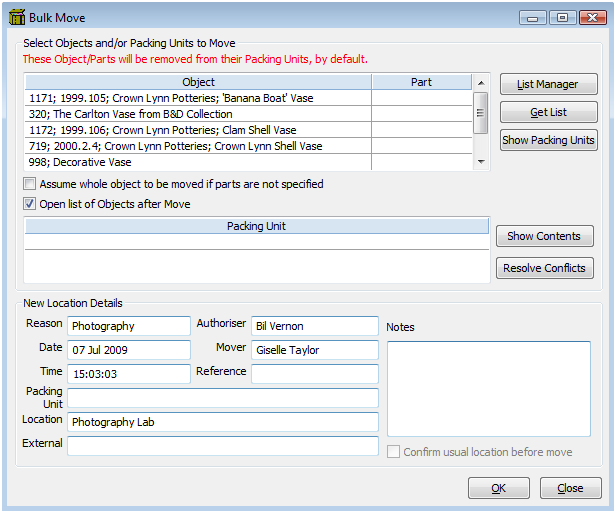
The Bulk Move window showing some Objects being moved to the photography lab.
Moving Multiple Objects
1.Go to Tools menu > Location Functions > Bulk move.
2.Choose the objects to be moved (make sure that the objects are not open in the background). You can enter objects in by typing them into the table or you can use a saved list by clicking the Get List button. If you are moving Packing Units, enter them in the Packing Unit section.
You can check if any of the objects selected are in packing units by clicking the Show Packing Units button. If objects are in packing units, they will be moved out.
3.Enter the date, time, reason, and the new Location details for the objects.
4.If you are moving Objects back to their Usual Locations, enter "Usual Location" as the reason, and don't enter anything in the location field. Tick the Confirm Usual location before move checkbox. You will get a pop-up showing you each object's usual location and asking you to confirm that is where you want to move it. If you enter "usual location" as the reason, and you enter a location in the Location field, the Usual Location for each object will be updated to the location you entered.
5.Click OK.
When the Bulk Move is finished, a window will open asking if you want another transaction. Selecting Yes will open a new Bulk Move window.