You can export or import XML data in Vernon CMS.
To do an XML Export
1.Find the records you would like to report on and click on the Report button  on the Tool bar.
1.If you are using an existing export, select that report from Portfolio by clicking More Templates, and skip to step 9. Otherwise, click the Create New Template button.
2.Change the Report Type to XML Export.
3.Select the fields by clicking the Select Fields button. You can access the Export Details window to alter the heading of a field by clicking the Field Details button  .
.
4.Choose the Sort field(s) by clicking the Sort Report button.
5.Click the Format button and click in the Export Filename field and click the Browse button  . Choose a location to save the XML file to, and enter a name for the export file.
6.Select an XML Export format from the list. Click OK.
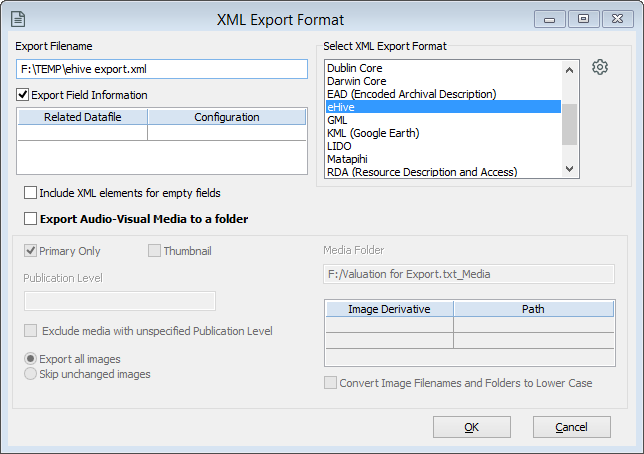
The XML Export window showing an example export into the eHive XML format.
7.Optionally, you can Export Field Information. This will include a header section at the start of the XML file, listing all fields selected for inclusion in the report. This can be useful for website developers.
8.If you need to change the records for the export, click on the Record Selection button.
9.Click on the Run Report button.
10.Click the Export button to run the report.