The Export option in Reporting can export data directly to Microsoft Excel. You can also export to Excel via List Manager.
To Export Records Into Excel
1.Find the records you would like to report on and click on the Report button  on the Tool bar.
2.If you are using an existing export, select that report from Portfolio by clicking More Templates, and skip to step 9. Otherwise, click the Create New Template button.
3.Change the Report Type to Export.
4.Select the fields by clicking the Select Fields button. You can access the Export Details window to alter the heading of a field by clicking the Field Details button  .
.
5.Choose the Sort field(s) by clicking the Sort Report button.
6.Click the Format button and select Table format (for Excel etc.) as the export format.
7.Click in the Export Filename field and click the Browse button  . Choose a location to save the file to, and enter a name for the export file. We suggest exporting the report as a text file (.txt).
8.You can choose to export audio-visual media to a folder by ticking the checkbox. When this checkbox is ticked, additional image options will become enabled. Make your selections, then click OK.
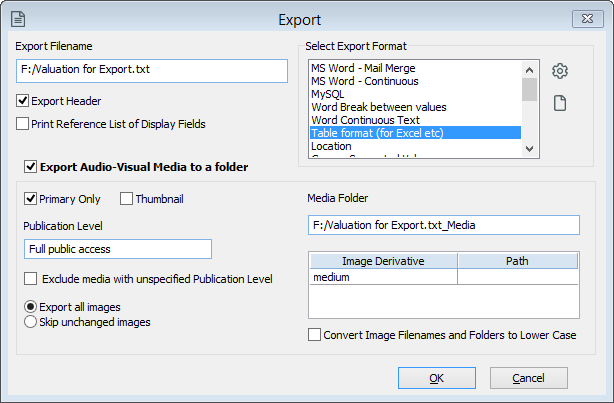
Image Options for Exports.
9.If you need to change the records for the export, click on the Record Selection button.
10.Click on the Run Report button.
11.Click the Export button to run the report.
12.Open Microsoft Excel.
13.Go to the File menu and select Open.
14.Locate the file you exported and click Open. You may need to change the drop-down menu to the right of the File name field to All Files (*.*) to show the .txt file.
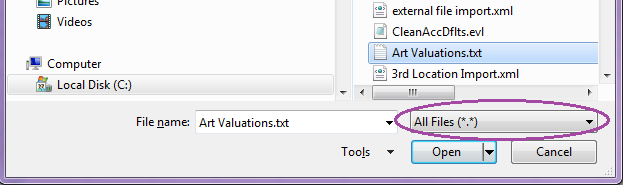
File Explorer All Files Option.
| 12. | Follow Excel's Text Import Wizard to convert the text file. |
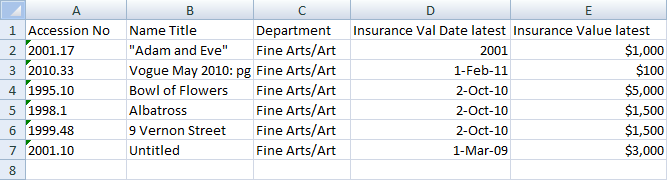
| 13. | Your resulting spreadsheet should look something like the following picture. Field names appear across the top row and exported records are listed in the rows below. |
| 14. | When you have finished, save the spreadsheet as an Excel Workbook (.xlsx) file. |