The Web Messenger Monitor window functions like a dashboard, and allows you to monitor what is happening with the queue(s) and web servers you have set up in Vernon CMS. This window can be accessed by going to Tools > Public Access > Web Messenger.
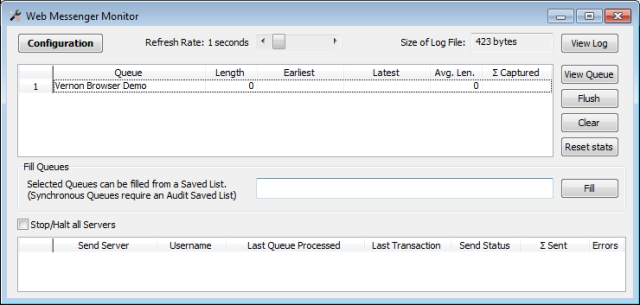
This screenshot shows a basic Web Messenger Monitor window that includes a listener for Vernon Browser. Please refer to the field list below for details on each field, as well as the different options for this window.
Web Messenger Monitor Features and Fields
Configuration button: Use this button to access the Web Messenger Configuration window.
Refresh Rate: The Refresh Rate indicates how often the monitor is updating the information on the queue. The default is 1 second. Use the scroll bar to increase/decrease the Refresh Rate.
Size of Log File: This field indicates the size of the log file in bytes. The size will depend on the type of log you have selected in the configuration record. You can access the log by clicking on the View Log button. The log will then appear in Notepad. It is a good idea to clear the log periodically. You can do this by deleting the txt file or by opening the log, pressing [Ctrl+A] to select all the contents and then pressing [Delete] on your keyboard.
Queue table
This table is display only and you will not be able to enter changes directly into the table.
Queue: This field lists the Listener name as defined in the Name field of the Web Messenger Configuration record. Each listener will appear on a separate line. Currently, you will only see queues that relate to Vernon Browser. If you have more than one instance of Vernon Browser, you may have more than one queue.
Length: The length refers to the number of pending messages, or the number of messages that have been captured but not sent. Ideally, this should be zero if everything is processing properly. The length will also read zero if you have turned off the capturing function.
Earliest and Latest: These fields only apply to synchronous queues, and do not apply to the Browser, which uses the asynchronous mode.
Average Length: This field displays the average length of the queue whenever a transaction is captured. Ideally, the average length should be zero or 1. If the average length is not zero, this may mean that there have been several bulk transactions or that the queue is lagging in processing the messages.
∑ Captured: This field gives the total number of messages that have been captured for this queue. This is a running total, and is not affected by turning the capturing function on or off.
Flush: Using the Flush button will prompt Web Messenger to process all transactions in the queue. Vernon CMS will prioritise processing these messages and will not be available for other Vernon CMS processes, such as updating indexes. Only workstations that have been identified as Web Servers can flush transactions. Indexing machines that are also set up as Web Servers will automatically use the Flush mode for processing messages. By default, other users that have been set up as Web Servers will use the Nibble mode to process transactions. In Nibble mode, one message is processed at a time, allowing users to continue using Vernon CMS for other functions, such as searching and performing bulk data updates. If a user wants to switch from Nibble to Flush mode, he or she will need to use the Flush button on the Web Messenger Monitor window. Once the transactions have been processed, Web Messenger will return to Nibble mode.
Clear: Using the Clear button will clear the queues. You may want to clear the queues if you decide to update Vernon Browser using Browser Export instead of Web Messenger.
Reset stats: Using the Reset status button will reset the Average Length and Σ Captured columns for the selected queues.
Fill Queues: The Fill Queues field allows you to use a Saved List to update the listener when it has become out of sync with changes that have been made to records in Vernon CMS. It allows for retrospective capturing of messages that have been missed because the Capturing function has been turned off. For example, you may turn off Capturing for a short period so that you can update records without immediately relaying those changes to Vernon Browser. When you turn the Capturing function back on, it does not retroactively capture messages for all the changes you made when it was turned off. To post those messages to the queue, you can create a Saved List of all the records you changed and then enter this list in the Fill Queues field. The objects in the Fill Queues list must also be on the original Saved List or be flagged according to the Flag Field, otherwise Vernon Browser will ignore the messages.

The Fill Queues field is not an option you will need to use regularly, only with the listener is out of sync. In most cases you will leave this field empty so that captured messages can process normally.
Stop/Halt All Servers tickbox: Checking this option will stop all web messenger servers from sending messages to the listener. You will only use this in an emergency.
Send Server edit table: This table shows which Web Servers are processing queues, and it is display only. Each active Web Server will be shown on a separate line in the table. Users that are set up as Web Servers, but are not currently logged into Vernon CMS, will not show in the table.