Web Messenger can be configured in the Web Messenger Configuration window. This window can be found by going to Tools > Public Access > Web Messenger. This will open up the Web Messenger Monitor window, where you can click on the Configuration button.
In the Configuration window you will set up how messages are captured and queues are processed. You will also specify how messages are sent to the listener. You will need to set up a Configuration record for each listener.
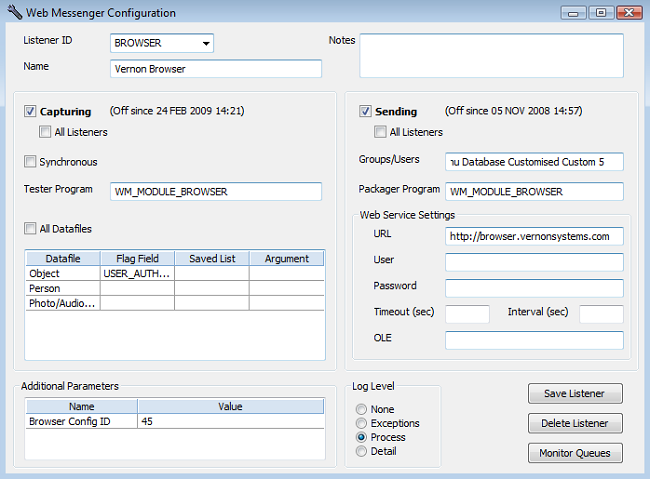
This screenshot shows a basic Web Messenger Configuration for Vernon Browser. Please refer to the field list below for details on each field, as well as options for different configurations.
Web Messenger Configuration Fields
Listener ID: This is the ID that Web Messenger will use to identify the queue/listener that relate to this configuration record.
Name: This is how the name of the queue/listener will display in the Web Messenger Monitor window. The name should correspond with the Listener ID, and should be meaningful so that users can easily distinguish between queues and the listener they are associated with.
Notes: Use for additional notes about the configuration.
Configuring Capturing Options
Capturing tickbox: When ticked, messages will be captured and placed in the queue. When unticked, messages will not be captured. Generally, this can be left ticked.
All Listeners tickbox: This is a shortcut for turning on/off capturing for all listeners. For example, if there is an issue in Vernon CMS you might want to turn off capturing for all listeners in one step, and not have to go through each Configuration record. In order to turn off capturing for all listeners, the Capturing tickbox would need to be unchecked with the All Listeners tickbox checked.
Synchronous tickbox: This is where you can configure whether Web Messenger is using synchronous or asynchronous mode to process the messages in the queue. Vernon Browser uses asynchronous mode so this tickbox should be left unchecked.
Tester Program: The tester program can be used to determine how a transaction should be generated for a captured record. The tester program is used in addition to, or instead of, the Datafile conditions. The tester program may require you to fill in details in the Additional Parameters table. For Vernon Browser, use the following tester program: WM_MODULE_BROWSER. This tester program tells Vernon Browser how to process the Keep Browser Data parameter (see below), and how to process transactions for the Photo/Audio-Visual file so that it is only processing records that have changes to the public access level or digital filename fields.
All Datafiles tickbox: Check this box if you want to capture changes for all datafiles in Vernon CMS. Keep this box unchecked for the configuration for Vernon Browser.
Datafiles table:
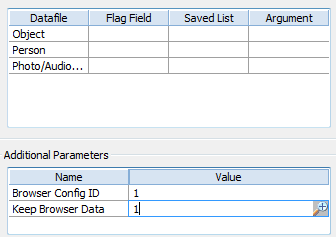
Datafiles: The Datafiles column is where you can list the files that will be captured. In Vernon Browser, you should only list Object, Person and Photo/Audio-Visual. You can then use either the Flag Field or Saved List column to determine which records within that file should be published on the listener.
Flag Field: In the Flag Field column, you need to specify which user defined authority field you are using in a record to tag it as being publishable. In the case of Vernon Browser, you will only need to specify a Flag Field for the Object file. This is because all Person and Photo/Audio-Visual records that relate to your Object records will automatically be included by Web Messenger and do not require any further configuration. In the user defined authority field you are using in your Object records, you will use the Browser Collection authority file to select which Browser Collection you want to associate with the Object record you are working in.
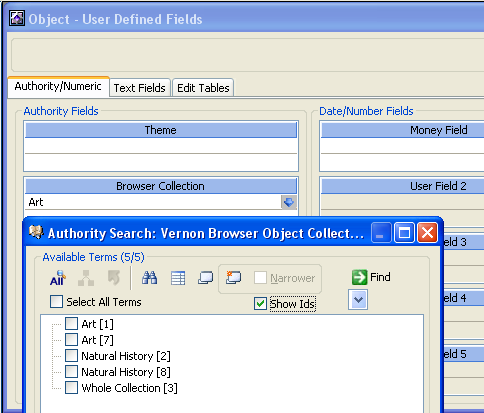
The main advantage to using a Flag Field is that it simplifies the process for removing records from the listener. Changes to the Flag Field will result in a message being captured. For example, you can remove a Browser Collection from the user defined authority field in the Object file so that the field is blank. A message will be captured telling the listener to remove that record from the Browser. If you use a Flag Field, you will still need to include a Saved List of objects on your Browser Collection record. You will NOT need to include Keep Browser Data as an Additional Parameter.
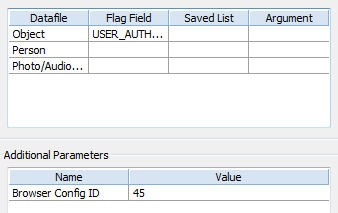
Saved List: Here you can specify a Saved List of records that will be used by the listener to determine which records it should 'keep' and which records it should ignore or remove. If you use a Saved List instead of a Flag Field, messages are captured for ALL records. Messages that relate to records that are not on your Saved List are processed as 'Delete' transactions, and the listener then ignores or removes records that do not appear on the Saved List. The Saved List option is not required for Vernon Browser configuration. This is because the objects are defined in the Browser Collection records for the Browser Configuration.
Argument: This is a general purpose field available for additional parameters that are specific to the datafiles specified. For example the Generic Packager uses this to identify the Saved Report (by Portfolio ID) associated with each datafile.
Additional Parameters table: This is where you can specify additional configuration details that may be required by the tester program and/or the packager program.
Name: Enter the name of the additional parameter.
Value: Enter the System ID that relates to the parameter you have specified.
Additional Parameters for Vernon Browser: You are required to enter Browser Config ID in the Name column. In the associated Value column, you will need will need to enter the System ID for the Browser Configuration record where you have used the Browser Collection record with the Saved List of records that you want to capture on the Browser.
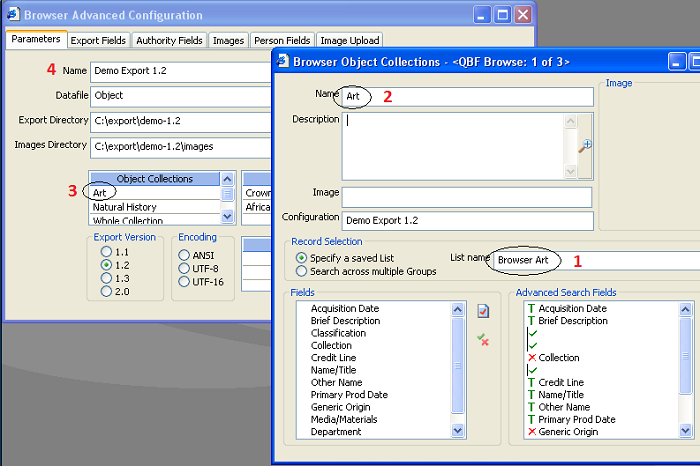
(1) This is the Saved List of objects that you want to appear on Vernon Browser
(2) This is the Vernon Browser Object Collection record. This Object Collection is specified on your Browser Configuration record (3). If you are using a Flag Field, you will also specify this Object Collection in the Flag Field on the Object records that you want published.
(4) This is the Browser Configuration record. You will use the System ID for this Browser Configuration record in the Value field for the BROWSER CONFIG ID parameter.
Optionally, you can enter a second parameter: Keep Browser Data. This parameter manages how records are removed from the Browser. To remove records, you will need to manually go into the Browser Administration page and delete the record. The advantages of using Keep Browser Data is that the queue does not fill up with Delete messages (remember that the Delete messages are for ALL records, and not just the records on your Saved List), and records will not be removed from Vernon Browser if you make a mistake and unintentionally remove records from your Saved List. The disadvantage of using Keep Browser Data is that you will need to delete records manually by going into the Browser Administration page. In the Value field for Keep Browser Data, select 1 as the Value.
Please note that you will use EITHER a Flag Field OR Keep Browser Data, not both.
Configuring Sending Options
Sending tickbox: When checked, Web Messenger is sending messages to the listener. When unchecked, messages will not be sent to the listener. The tickbox should be unchecked when the listener isn't working, such as when it is down for maintenance.
All Listeners tickbox: This is a shortcut for turning on/off sending for all listeners. For example, if there is a problem with your network, you might want to turn off sending for all listeners at the same time. In order to turn off sending for all listeners, the Sending tickbox would need to be unchecked, with the All Listeners tickbox checked.
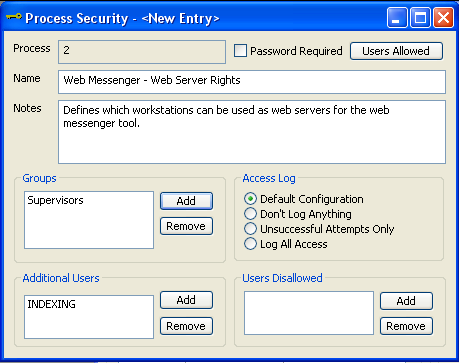
Groups/Users: This field defines which users/workstations are web servers. Please note that a user/workstation needs to be a web server in order to send messages to the listener. Configuring a user to be a web server is controlled by Process Security in Vernon CMS. If you want to add particular groups or users, including generic users such as Indexing or Collect as web servers you will need to create a new Process Security record. Once you have created that Process Security record in the Security tool, you can then enter its System ID or Name in the Groups/Users field. If you leave the Groups/Users field blank, all users will have rights to send messages to the listener.
Packager Program: This is a program in Vernon CMS which builds the messages and sends them. For Vernon Browser, enter WM_MODULE_BROWSER
Web Service Settings:
URL: Enter the url for the listener website. For Vernon Browser, enter the Browse site but add /opac-rest on the end. For example, http://browser.vernonsystems.com/opac-rest
User: This field does not apply to Vernon Browser and can remain empty.
Password: This field does not apply to Vernon Browser and can remain empty.
Timeout: This field refers to the number of seconds the sender will wait for a response from the listener. You can leave this field empty and accept the default.
Interval: This field will delay messages for the specified interval. Ideally this should be no more than a few seconds. If unspecified, messages are sent without delay. Web Messenger Monitor shows a send status of 'pause' when the message is delayed.
OLE: This field does not apply to Vernon Browser and can remain empty.
Log Level: Use this field to select the level of detail that you want to be recorded in the Log. Exceptions is the recommended level of detail for the Log. The Log can be accessed using the View Log button in the Web Messenger Monitor window.
Save/Delete Listener: Use these buttons to save or delete the Configuration record for the listener.
Monitor Queues: Use this button to return to the Web Messenger Monitor window.