When you have finished setting up the XML configuration, you are ready to import your data into Vernon CMS.
1.Go to Tools Menu > XML > XML Import.
2.In the Import Configuration field, enter the name of the configuration you set up. The Import File, Vernon Datafile, and Status for new records fields will auto-fill with information from your configuration.
3.You can save your records with imported data as a list so that you can easily find them again. Enter a name for the list in the Save results as List field.
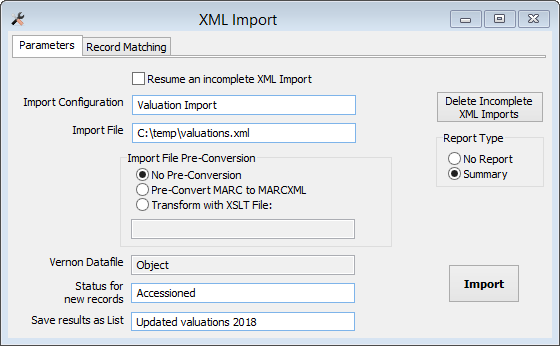
4.The Record Matching tab will be auto-filled from your configuration, but if you need to change how records are matched, you can do that here.
5.Click the Import button.
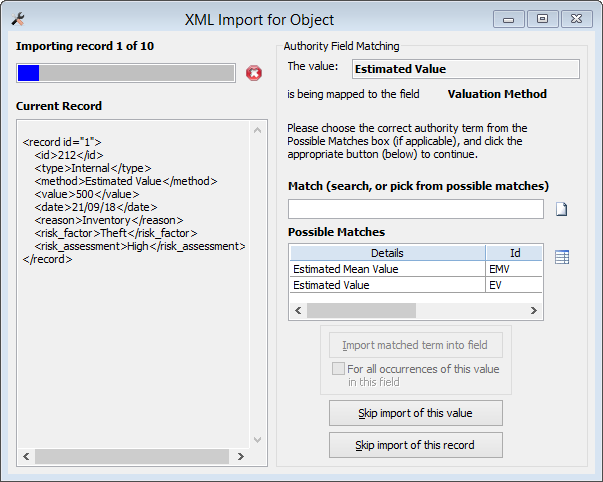
6.The XML Import window will open and the system will start importing data.
If the system is unsure of the term you want in a field, you will be asked to pick from a list of possible matches. In this example, the system is unsure whether the term should be "Estimated Mean Value" or "Estimated Value". Choose by clicking on the correct term in the table, and then clicking the Import matched term into field button. If the term you want is not listed in the table, you can search for it using the Match search field.
7.When the import is finished, a pop up will appear showing how many records were processed.
If you need to stop the import:
You can click the stop button  to stop the import at any time. When you want to resume the Import, tick the Resume an incomplete XML Import checkbox in the XML Import window and select from the Imports listed. The details for this Import will enter automatically in your XML Import window, to resume the Import press the Import button.