You need to configure Vernon CMS to read the xml file you created when preparing your data for import.
Before you begin, you will need:
•The internal field names of all the fields you're going to import data into. You can find the internal field name by clicking into the field, and then pressing Alt+F1 or go to Help > Database Information. The internal field name will be listed at the bottom of the Database Information window. Ignore the FMC number in brackets.
•The XML file you exported at the end of Preparing your Data for Import.
1.In Vernon CMS go to Tools menu > XML > XML Import > Configuration.
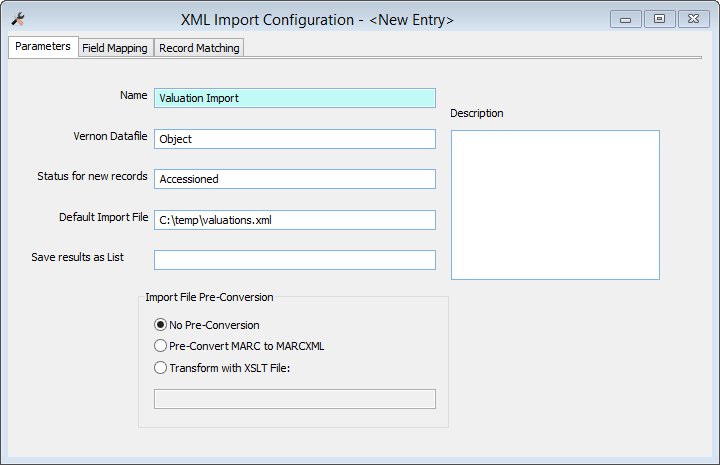
2.In the Parameters tab, give the import a name.
3.Choose the datafile you'll be importing data into.
4.Set a status for new records. You'll need to do this even if you aren't creating new records.
5.In the Default Import File field, choose the XML file that you exported at the end of preparing your data for import.
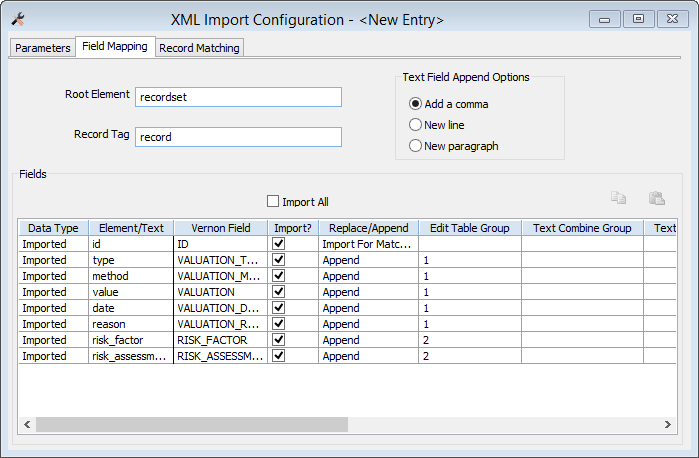
6.In the Field Mapping tab, click into the Root Element and Record Tag fields, so that they auto-fill.
7.In the table, list each of the fields that you have in your import spreadsheet.
a.Data Type field, specify whether you're going to import information from the spreadsheet, or add the same data to every record (static).
b.Element/Text field, type in the heading of the column exactly as it is in your import spreadsheet.
c.Vernon Field, the Internal Name of the field in Vernon CMS that you're putting data into.
d.Import?, tick this checkbox to make sure data is imported from your spreadsheet.
e.Replace/Append, choose whether the data you are importing should replace and pre-existing data in the field, or be appended to it.
f.Table group, put matching numbers in this field for all the fields that belong to the same table. In this example, all the fields that are part of the Valuation table have the Table Group of 1, and all the fields that are part of the risk assessment table have the Table Group of 2.
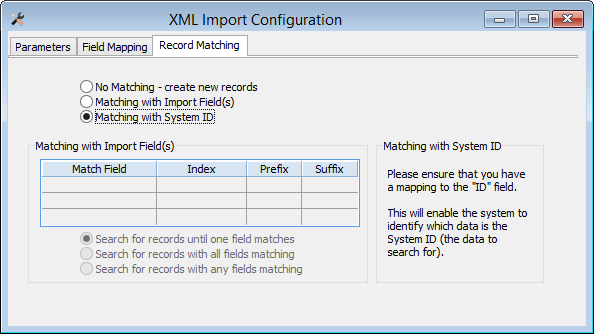
8.In the Record Matching tab, let the system know if you're using Accession Number or System ID for record matching, or if you're creating new records.
If you're using Accession Number, choose Matching with Import Field(s), then in the table, Match Field: Accession Number, Index: ACCESSION_NO_INDEX.
This example matches to records using the System ID.
9.Save the configuration.