The data you want to import into Vernon CMS must be entered into the Import Spreadsheet.
Things to think about before starting:
•Are you creating new records, or importing data into records that already exist?
•If you're importing data into pre-existing records, how are you going to link the information to the records they belong to in Vernon CMS, you will need to use an identifier such as the System ID, or the Accession Number.
•If you're creating new records with accession numbers, does the accession number format you're going to use already exist? The format should be set up before you do the import.
•Which datafile are you importing data into? You can only import data into one datafile at a time.
•Which fields in Vernon CMS are you importing data into?
•Are any of the fields you want to import to part of a table, if so, what are the other fields in the table? Some tables, such as the Valuation table require multiple fields to be filled in.
•If you're importing data into authority fields, do the terms you're going to use already exist in Vernon CMS?
•If you are importing data into location fields, Current Location and Location History will not update. Use the Bulk and Batch Location functions to update or assign locations to your records after the XML Import.
•If you are using XML Import to create new Person records, you will need to include the fields Record Type and Person/Corporate Type.
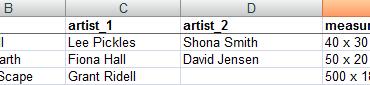
•If you have more than a single entry mapped to one Authority field, each piece of data must be in a separate cell of your Import spreadsheet, and mapped to the same field in Vernon CMS. For example, if you have more than one Primary Maker they need to be in separate columns in your spreadsheet:
Preparing you data for import
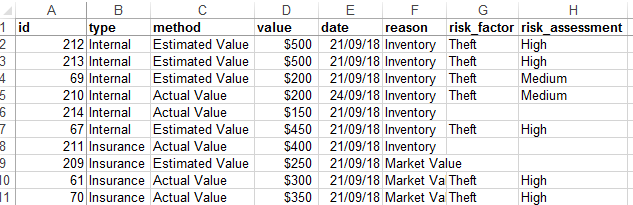
In this example, we will update records that already exist. We will be adding new information to the Valuation table, and the Risk Assessment table. We will use the System ID to link the information to the records.
1.Go to WINCOLL/TOOLKIT and make a copy of the XMLImport.xls spreadsheet. Save it somewhere you can easily access, and rename it for your import.
2.In the data tab of the spreadsheet, add the headings of the fields you want to import. The headings should be all lower case, and match the names of the fields you're importing data into. Replace any spaces with underscores.

3.Enter or copy and paste the information that you want to import into the columns. Each row is one record. Don't leave any gaps in the rows.
4.When you have finished adding data, go to the Control tab. Under Destination, enter the filepath and filename to save the data to, for example, C:\temp\valuations.xml
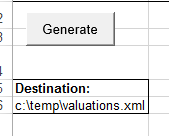
5.Click the Generate button. The XML file will be saved to the location to specified in step 4.